ChatGPT has transformed how we work with AI, but typing long prompts can be slow and tedious. With WhisperTyping, you can speak to ChatGPT naturally on Windows - composing prompts 4x faster than typing.
Why Voice + ChatGPT?
ChatGPT works best with detailed, contextual prompts. But typing out those prompts takes time. Voice input solves this:
- Faster prompting: Speak 120+ words per minute vs. typing 40 WPM
- More natural: Explain what you want conversationally
- More detail: Easily add context you'd skip if typing
- Hands-free: Multitask while crafting prompts
Setting Up Voice Typing for ChatGPT
Getting started takes just a few minutes:
Step 1: Install WhisperTyping
- Download WhisperTyping
- Run the installer and follow the setup wizard
- WhisperTyping will start and appear in your system tray
Step 2: Configure Your Hotkey
Open Settings → Hotkeys and choose a comfortable activation key. Popular choices:
- CapsLock (default) - easy to reach, rarely used for typing
- F1 - function keys are great for this
- ~ (Tilde) - conveniently located
Step 3: Start Using Voice with ChatGPT
- Open ChatGPT in your browser (chat.openai.com)
- Click in the message input field
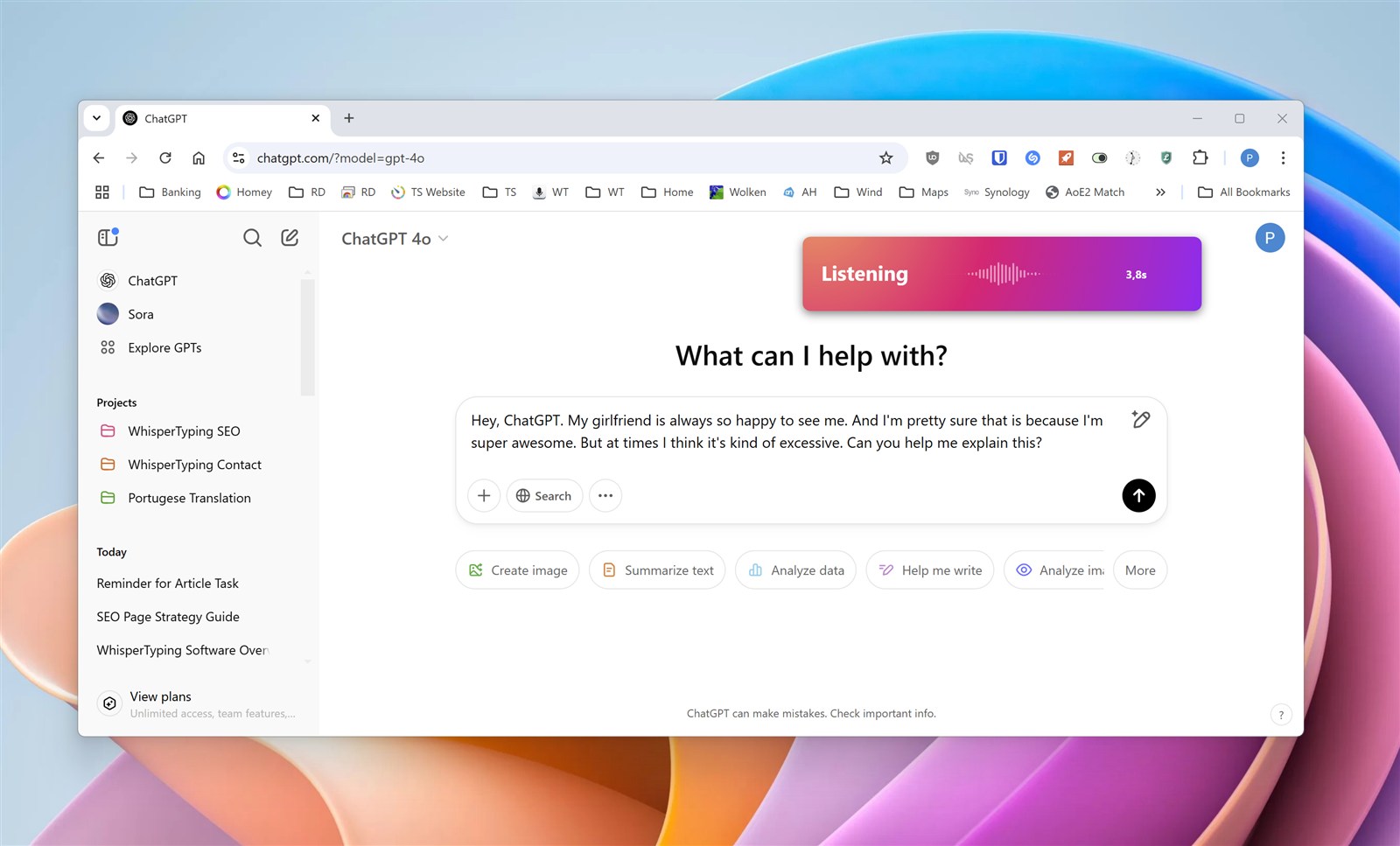
- Press your hotkey to start recording
- Speak your prompt
- Press the hotkey again to transcribe
- Your spoken words appear in the ChatGPT input - hit Enter to send
Tips for Voice Prompting
Speak in Complete Thoughts
Whisper transcribes more accurately when you speak in complete sentences. Instead of fragments, dictate your entire prompt in one go.
Use Natural Language
You don't need to speak formally. ChatGPT understands conversational language, so just explain what you want naturally.
Add Context Verbally
Voice makes it easy to add context you might skip when typing. "I'm writing an email to a client about a project delay, and I want to be apologetic but professional..."
Dictate Code Instructions
When asking ChatGPT to write code, describe what you want in plain English. "Write a Python function that takes a list of numbers and returns only the even ones, sorted in descending order."
Even Faster: Built-in AI Modes
WhisperTyping also has built-in AI modes that skip the ChatGPT interface entirely:
Answer Mode
Start with "Answer" to ask GPT-4 directly:
- "Answer: What's the capital of Australia?"
- "Answer: Explain quantum computing in simple terms"
- "Answer: Give me 5 ideas for a birthday gift for my wife"
The answer types directly into your current application.
Write Mode
Start with "Write" to compose text:
- "Write an email declining a meeting invitation politely"
- "Write a product description for a wireless headphone"
- "Write a tweet announcing our new feature launch"
Rewrite Mode
Select text, then start with "Rewrite":
- "Rewrite this more formally"
- "Rewrite this as bullet points"
- "Rewrite this in Spanish"
These modes give you GPT-4 power anywhere on your computer, not just in the ChatGPT interface.
Get Started
Ready to supercharge your ChatGPT workflow with voice? Download WhisperTyping and start speaking to AI.